Uploading images for virtual machines
Acronis Cyber Infrastructure allows you to upload ISO images and templates that can be used to create VM volumes.
To upload an image
- On the Compute > Virtual machines > Images tab, click Add image.
-
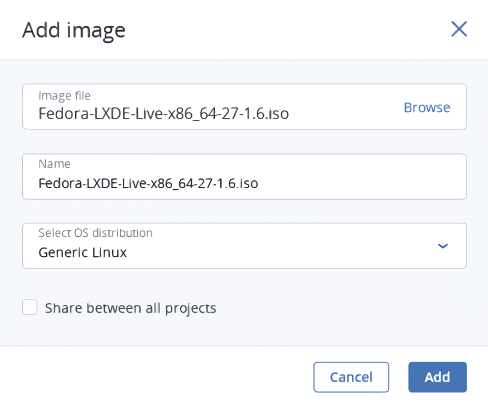
In the Add image window, do the following:
- Click Browse and select a file in one of the supported formats: .iso, .img, .qcow2, .raw.
- Specify an image name to be shown in the admin panel.
-
Select the correct OS type from the drop-down list.
The OS type affects VM parameters such as hypervisor settings. VMs created from an image with an incorrect OS type may not work correctly, for example, they may crash.
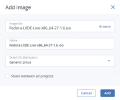
- Optionally, select the Share between all projects check box. With the option disabled, the image will only be available in the admin project of the Default domain.
- Click Add to start uploading the image. Upload progress will be shown in the bottom right corner.
Do not reload the page while the image is being uploaded or the process will fail.
 What's next